Bank Reconciliation in Business Central v22 and newer is similar to how bank reconciliation worked in more recent versions of NAV (2017, 2018). This should be enabled by default in version 23 of Business Central(both OnPrem and SAAS). If you are using an older version you can go into the feature management and enable Bank Deposits and Bank Rec functionality feature.

Note: If not enabled, the functionality should be enabled with caution as this may impact extensions dependent on older bank rec and older deposit procedures, tables, and pages.
Q. How to do Bank Reconciliation at the end of the month?
A. It depends on how the accounting department reconciles the statement.
If the accounting department reconciles the bank statement outside of BC and then wants to perform bank reconciliation in BC you can follow the steps below
- Open a New reconciliation on the Bank Account Reconciliation page

- Select a Bank Account
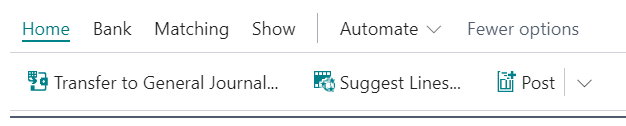
- Click on Process and Suggest Lines. This will prompt you to select a date range, once you select a date range and click OK, the Bank Account Ledger entries in that date range will be copied to bank statement lines and show up as matched entries.
- If you have some entries that are required to be unmatched. click on that line entry and click on Remove Match
Note: you can also manually enter entries to the Bank Statement Lines or following the same format in Excel, copy from Excel and paste it into the Bank Statement Lines.
Note: for bank statement lines that do not exist in Bank Account Ledger Entries and you wish to create them, you can use the Transfer to General Journal functionality for this.
 Business Central OnPrem and SAAS Apps
Leave a comment