With the GUI-based admin console deprecated for newer versions of BC. I ran into a bit of a hiccup when I was trying to set up a development environment. I was getting the following error in VSCode when I tried downloading symbols.

To fix this I followed the steps below
- Opened Business Central Administration Shell as an Administrator
- Type Get-NAVServerInstance to get the instance name if not already known

- The server instance returned is BC230
- Now use the following PowerShell command to enable developer services
- Set-NAVServerConfiguration BC230 -KeyName DeveloperServicesEnabled -KeyValue true
- Stop-NAVServerInstance BC230
- Start-NAVServerInstance BC230
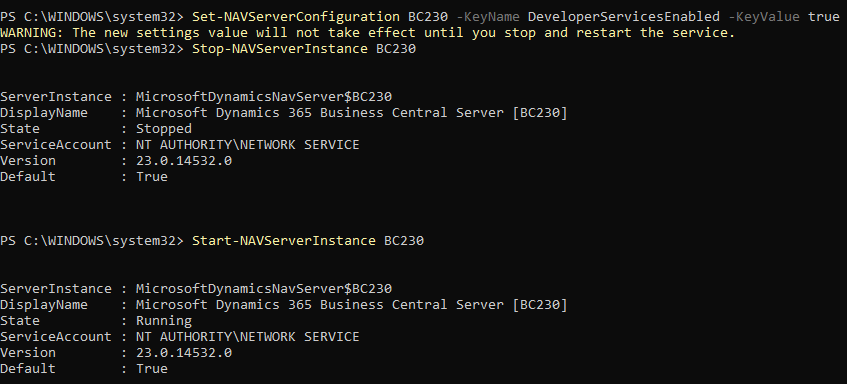
- Once the above steps are completed
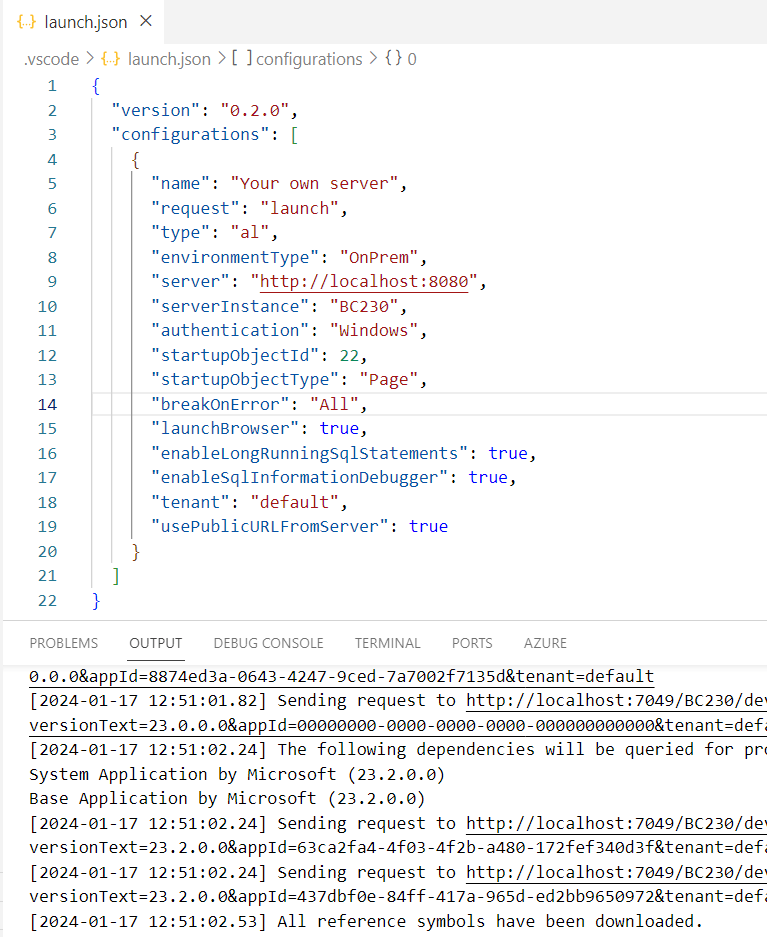
- I went back to VSCode and clicked on Download symbols
- I was able to download the AL Packages
If you have any feedback or questions about how to set up your own development environment for Business Central you can always add a question or a comment to this post.
 Business Central OnPrem and SAAS Apps
Leave a comment